KepAIx Install Guide
Follow these steps to install the KepAIx Beta Widget on Windows. Some browsers may warn you because this is a new beta app and not yet widely downloaded.
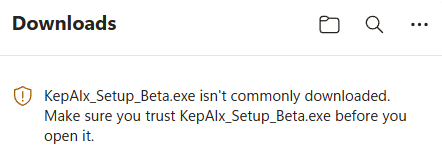
Browser Download Warning
If Windows or your browser says KepAIx is not commonly downloaded, choose the option to keep the file only if you downloaded it from the official KepAIx beta page.
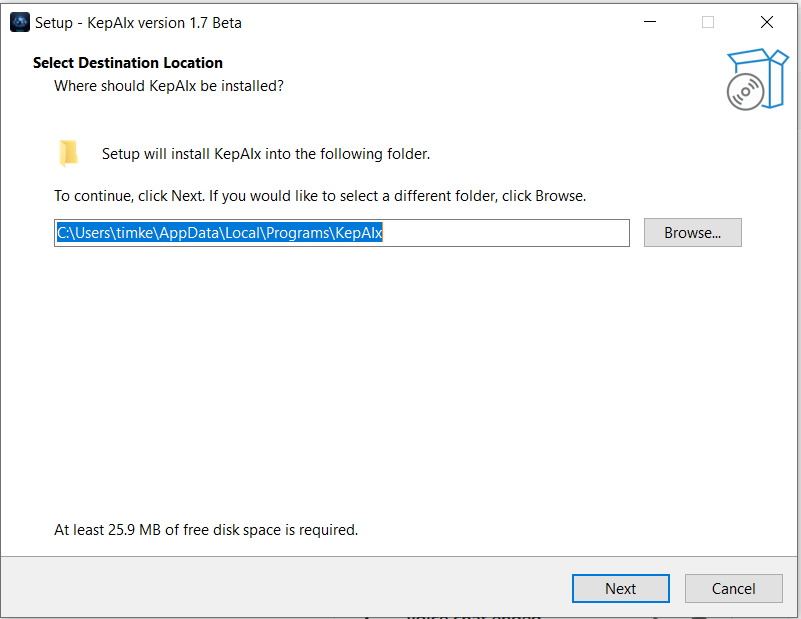
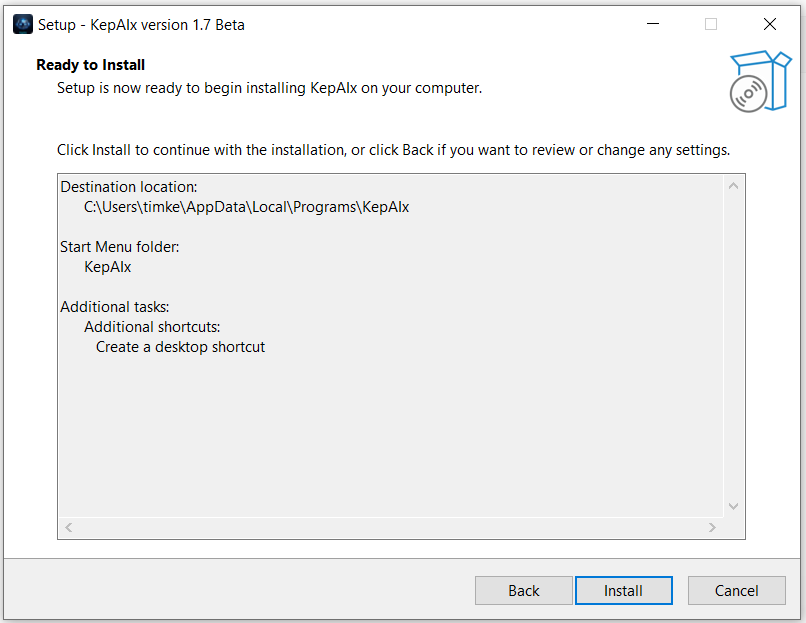
Step 1: Choose Install Location
The default install location is recommended.
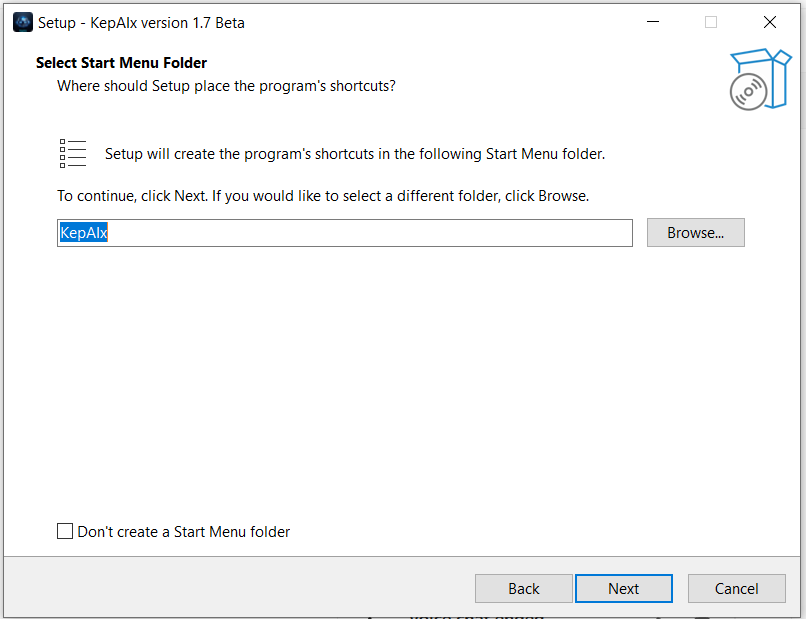
Step 2: Start Menu Folder
Leave the Start Menu folder as KepAIx and click Next.
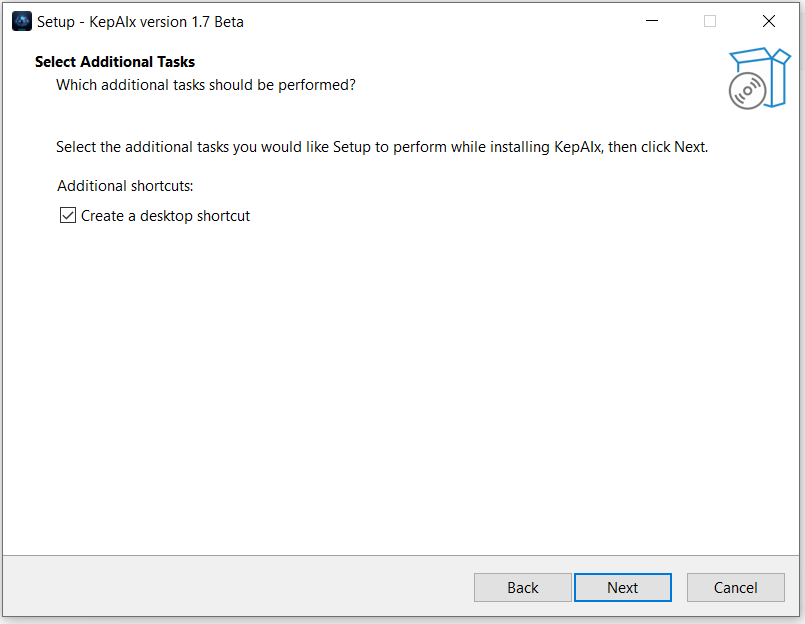
Step 3: Desktop Shortcut
Keep “Create a desktop shortcut” checked if you want easy access from your desktop.
Step 4: Ready To Install
Review the settings, then click Install.
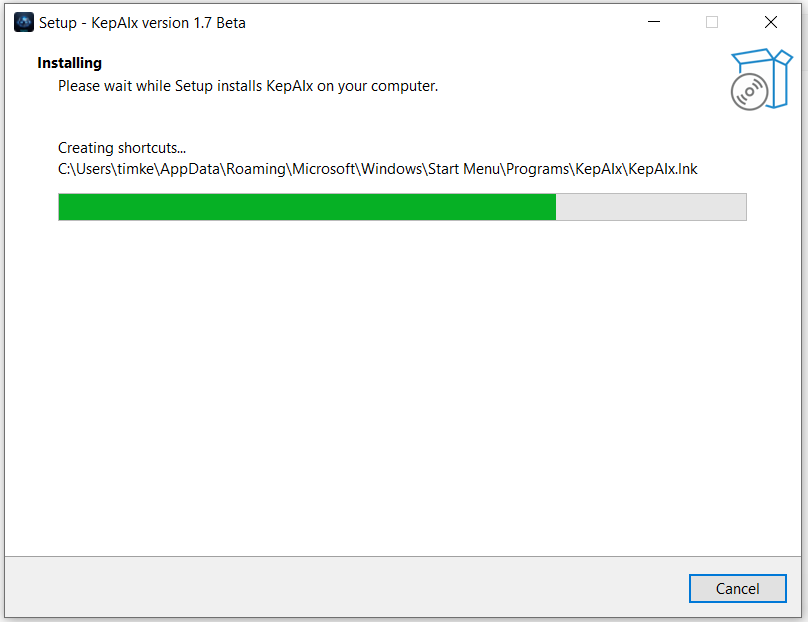
Step 5: Installing
Wait for the installer to finish copying files and creating shortcuts.
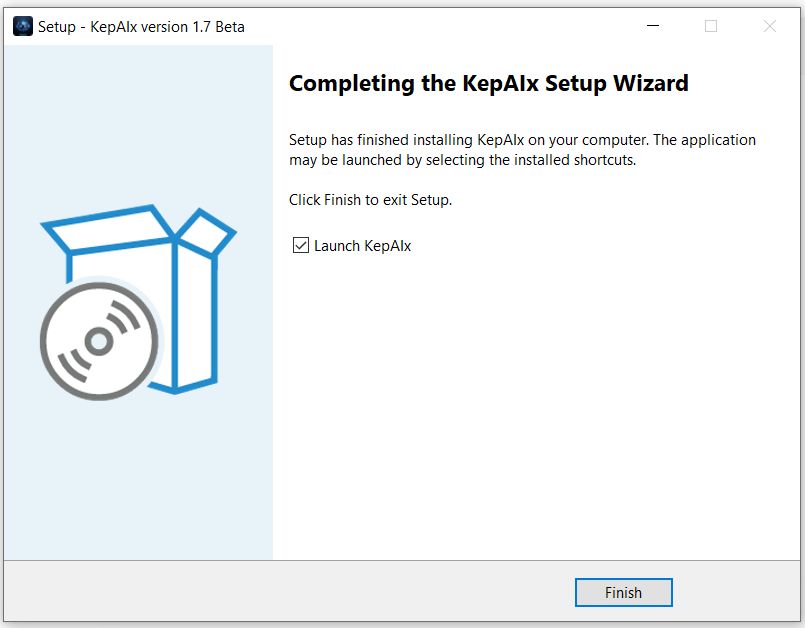
Step 6: Finish And Launch
Leave “Launch KepAIx” checked and click Finish.
First Launch May Take A Moment
The very first time KepAIx opens, Windows may take a few moments while the AI system, learning engine, charts, and required files initialize for the first time. This is normal for the first launch.
Once KepAIx opens:
- Enter your beta license key when prompted.
- Open the SETTINGS tab inside KepAIx.
- Approve the public/free API market data acknowledgment.
- This allows KepAIx to pull live crypto price feeds and display charts, AI signals, and market analysis correctly.